Advance Groups / Classes
Church Windows has a utility that will change people's
Membership in their Groups / Classes to the next higher Group or Class. This routine will allow you to advance the total
Membership of a group or selected members in the group. This will not
Advance School Grades on
The Individual Record.To run the Advance Groups / Classes routine, you may not have
The People File open. If your computers are networked, everyone must be closed out of
Membership.
- From The Initial Portal of Church Windows choose Membership
- Then
in the Button Bar at the top of the screen either:
- Select Special Functions, and choose Advance Groups.
- Select Groups / Skills, and choose Advance Groups.
OR
- A message box will open encouraging you to make a backup of the data before advancing the Groups / Classes. Do so.
- After Making a Backup of the data, re-enter Church Windows.
- Come back to Advance Groups / Classes and click OK.
- The Advance Groups / Classes dialog screen will open:
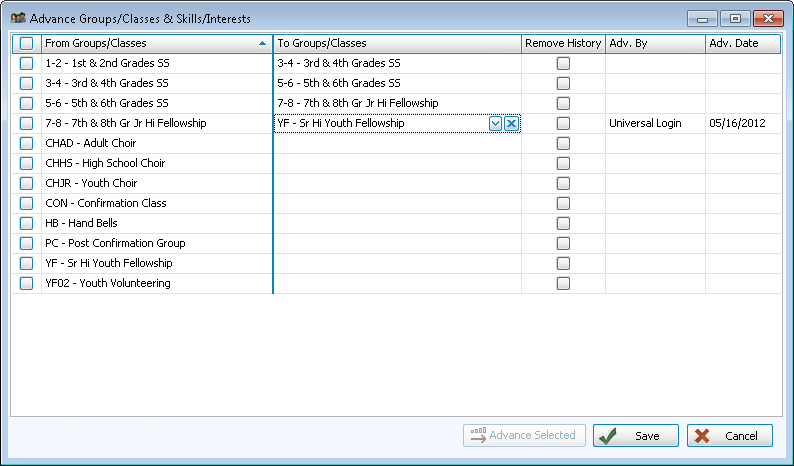
- From Groups / Classes
- On the left, will be a list of all the codes and descriptions for the Groups / Classes that were marked with a checkmark in "Show on 'Advance Groups / Classes' screen" on the Add Groups / Classes screen.
- Put checkmarks next to each Group / Class that you want to advance.
- To Group / Class
- On the right, you will identify the next Group / Class to which each Group / Class will advance.
- Click in the box for the Group / Class and from the list that appears below, click the Code or Description (name) of the Group / Class to which that Group / Class will advance.
For example, a 1st grade Sunday School class would logically advance to a 2nd grade Sunday School class.
- Remove history
- If you would like to have the old Group / Class removed from the member's screen upon advancement, click to place a checkmark in the box.
- If you would like to leave the Group / Class on the member's record to keep a history of that person's involvement in Groups / Classes, leave the Remove history box blank.
- Adv. By - Further to the right on the Advance Groups / Classes screen, if you have Users setup in Church Windows, this column will tell you who last advanced each Group / Class.
- Adv. Date - This column displays the date when each class was last advanced.
- Continue with the setup of advancement from and to. You do not have to advance them all at the same time, although you may.
- If this is how your classes will always advance from year-to-year, click Save to save the advancement setup.
- Then click Advance Selected to continue.
- Another screen will open for each group you selected:
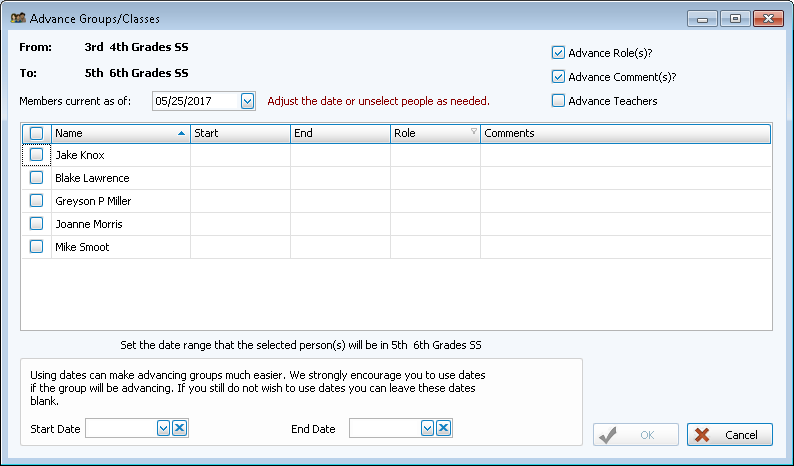
- You may select to advance all or only some of the Group / Class members and enter Start and End Dates for all of them.
- You may also choose whether or not to advance the Roles, Comments, and Teachers along with the Group or Class members.
- Continue advancing each class as it shows on the screen.
- If you decide to cancel the advancing process, click Cancel on the screen of each of the classes that you wish to cancel advancing. The classes already advanced will remain advanced.
